Le système de publication SPIP propose un certain nombre de « raccourcis SPIP » destinés à simplifier la rédaction des documents publiés, sans connaissance du HTML, ainsi qu’à faciliter le traitement automatique de la mise en page.
Il est toujours possible d’écrire du code HTML dans vos documents SPIP, mais nous vous conseillons d’utiliser de préférence ces raccourcis, plus faciles à mémoriser et permettant au système certaines opérations automatisées.
{{{ Un intertitre }}}

Du texte avec {de l’italique} et {{du gras}} ou un {{ {mélange des deux} }}.
Un retour à la ligne avec [un lien externe->https://www.spip.net] et [un lien interne->art12] avec un titre automatique [->rubrique10].

Un autre paragraphe avec [[Une note en bas de page]] et un terme de [?glossaire].

-* Une liste
-* Une liste
-** Sous élément de liste

-# Une liste ordonnée
-# Une liste ordonnée
-## Sous élément de liste ordonnée

Un séparateur
----

Un tableau
| {{ Lieu }} | {{ Action }} |
| Les grottes | Spip Party |
| Toulouse | Spip en rose |

La définition d’une ancre [direct<-] avec un lien pour y aller [->#direct].

<quote>Une citation</quote>
Du texte avec de l’italique et du gras ou un mélange des deux .
Un retour à la ligne avec un lien externe et un lien interne avec un titre automatique rubrique 10.
Un autre paragraphe avec [1] et un terme de glossaire.
Un séparateur
Un tableau
| Lieu | Action |
|---|---|
| Les grottes | Spip Party |
| Toulouse | Spip en rose |
La définition d’une ancre avec un lien pour y aller #direct.
Une citation
[1] Une note en bas de page
Nous présentons ici les raccourcis typographiques les plus courants et les plus simples.
Ces raccourcis répondent à la grande majorité des besoins et permettent de publier en ligne aussi aisément que lorsqu’on rédige un mail.
Les autres chapitres détaillent des possibilités plus avancées et complexes de ces raccourcis, permettant d’affiner encore le contrôle de la mise en forme des textes.
SPIP respecte automatiquement les principales règles d’espacement de la typographie française. Des espaces insécables sont ajoutées devant les caractères :, ;, !, ?, de même qu’avant et après les guillemets « à la française ».
Note : cette fonctionnalité n’est activée que sur les sites dont la langue principale est le français.
«Des cartes: pique; cœur; carreau! trèfle?»
« Des cartes : pique ; cœur ; carreau ! trèfle ? »
Pour créer des paragraphes, il suffit de laisser une ligne vide, un peu comme on sépare les paragraphes dans un email (on « saute » une ligne).
Le fait d’uniquement « revenir à la ligne » (retour-chariot) sans séparer les deux paragraphes par une ligne vide ne suffit pas pour provoquer un changement de paragraphe.
Vous pouvez laisser plusieurs lignes vides à la suite sans que cela modifie la présentation.
En typographie classique, le simple retour à la ligne est très rare (limité essentiellement à la poésie ; ou pour présenter une addresse postale). Il ne faut pas l’utiliser pour former un paragraphe.
Le retour à la ligne est automatique, mais peut être explicité en tapant _ (le trait de soulignement ou underscore, suivi d’une espace) au début de la ligne, pour montrer l’intention volontaire de ce retour aux autres rédactrices et rédacteurs du texte.
Je suis
un retour à la ligne normal, et voici
_ un retour à la ligne explicite.

Je suis un nouveau paragraphe, après une ligne vide.
Je suis
un retour à la ligne normal, et voici
un retour à la ligne explicite.
Je suis un nouveau paragraphe, après une ligne vide.
On indique du texte en italique en le plaçant entre des accolades simples.
On indique du texte en gras en le plaçant entre des accolades doubles.
Du texte {en italique} et du texte {{en gras}}...
Du texte en italique et du texte en gras...
Les intertitres sont des titres à l’intérieur d’un texte permettant d’en indiquer la structure.
Dans SPIP, on les indique en les plaçant entre des accolades triples.
{{{Un titre de partie}}}
Il est possible d’ajouter un trait de séparation horizontal en utilisant au moins quatre tirets sur une nouvelle ligne tel que ----.
----
On peut insérer une puce en début de ligne dans SPIP : il suffit de revenir à la ligne et de commencer la nouvelle ligne avec un tiret -.
Notez : ici un simple retour à la ligne suffit (on peut faire des énumérations dans le même paragraphe) ; mais si l’on « saute » une ligne avant la ligne commençant par un tiret, une ligne vide est affichée avant l’énumération.
- Qu’est-ce que cela peut faire que je lutte pour la mauvaise cause puisque je suis de bonne foi?
- Et qu’est-ce que ça peut faire que je sois de mauvaise foi puisque c’est pour la bonne cause.
(Jacques Prévert)
- Qu’est-ce que cela peut faire que je lutte pour la mauvaise cause puisque je suis de bonne foi ?
- Et qu’est-ce que ça peut faire que je sois de mauvaise foi puisque c’est pour la bonne cause.
(Jacques Prévert)
On notera qu’il s’agit bien d’insérer une puce et non de créer une liste.
Le tiret long ou cadratin est le signe —, utilisé par exemple dans des dialogues. Il n’est pas toujours évident à écrire selon le clavier utilisé. SPIP propose le raccourci -- pour le générer.
Je suis -- un tiret long dans le flux de texte -- puis dans un dialogue:
-- Bonjour ?
-- Bonjour !
Je suis — un tiret long dans le flux de texte — puis dans un dialogue :
— Bonjour ?
— Bonjour !
Un lien hypertexte s’écrit avec le code [titre->URL].
SPIP est une initiative du [minirézo->https://www.spip.net/fr_rubrique91.html].
SPIP est une initiative du minirézo.
L’adresse du lien peut être une adresse absolue (commençant, comme ici, par https://), une adresse relative (vers une autre page du même site), un lien vers un document utilisant un protocole de l’internet (ftp://...), une adresse email ([->minirezo@rezo.net])...
Vous pouvez afficher en toutes lettres un lien cliquable sous la forme d’une adresse URL, en n’indiquant rien dans la partie dédiée au titre.
[->https://fr.wikipedia.org/wiki/Jeanne-Marie_Leprince_de_Beaumont]
Notez que, dans le cas des URL très longues, l’affichage est tronqué (pour éviter de dégrader votre interface graphique), mais le lien hypertexte pointe vers la bonne adresse.
Enfin, une URL écrite directement se transforme également en lien hypertexte automatiquement (celui ci n’est alors pas tronqué s’il est long).
https://fr.wikipedia.org/wiki/Jeanne-Marie_Leprince_de_Beaumont
Il est possible de préciser la langue de la page vers laquelle le lien pointe, ce que les navigateurs afficheront à leur convenance. Pour cela, il faut mettre le code-langue entre accolades.
[Un site en français{fr}->https://www.example.org]
Cela est particulièrement recommandé lorsque la page de destination n’est pas dans la même langue que votre texte.
Si l’on veut donner beaucoup d’informations sur le lien sans allonger excessivement la zone cliquable, on peut provoquer l’apparition d’une info-bulle en plaçant avant la flèche le signe | suivi du texte souhaité :
[voir ici|Ce lien vous expliquera tout ce qu’il faut savoir->https://www.example.org]
Ce même système de liens hypertextes facilite, de plus, la création de liens à l’intérieur de votre site. La seule subtilité consiste à repérer le numéro de l’article, de la rubrique, ou autre objet éditorial vers lequel vous voulez mener votre lien hypertexte.
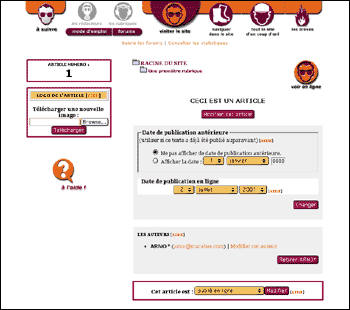
Lorsque, par exemple, vous visitez un article dans l’espace privé, la colonne de gauche contient un pavé indiquant, en gros caractères, ce numéro.
C’est ce numéro que vous allez indiquer dans le lien hypertexte.
Lien vers l’article 342 :
- Lien vers [l’article->342]
- Lien vers [l’article->art342]
- Lien vers [l’article->article 342]
- Lien vers [->art342]
- Lien vers l’article
- Lien vers l’article
- Lien vers l’article
- Lien vers article 342
Si rien n’est précisé avant la flèche, comme dans [->art342], le titre de l’objet éditorial, s’il existe, sera automatiquement utilisé comme texte du lien.
Lien vers la rubrique 12 :
- Lien vers [la rubrique->rub12]
- Lien vers [la rubrique->rubrique 12]
- Lien vers la rubrique
- Lien vers la rubrique
Auteurs, mots-clés, sites, images, documents, brèves :
- Lien vers [un auteur->aut13] ou [le même auteur->auteur13]
- Lien vers [un mot->mot32]
- Lien vers [un site syndiqué->site1]
- Lien vers [un document joint->doc17] ou [le même document->document17]
- Lien vers [une image->img13] ou [la même image->image13]
- Lien vers [la brève->br65] ou [la même brève->breve 65]
- Lien vers un auteur ou le même auteur
- Lien vers un mot
- Lien vers un site syndiqué
- Lien vers un document joint ou le même document
- Lien vers une image ou la même image
- Lien vers la brève ou la même brève
Là aussi, sans rien spécifier avant la « flèche », comme dans [->aut13], SPIP insérera automatiquement les informations nécessaires. Dans le cas d’un document joint ou d’une image, si l’on a indiqué un titre manuellement, c’est ce titre qui sera affiché ; sinon c’est le nom du fichier lui-même qui sera utilisé.
Les raccourcis pour mentionner la langue et créer une info-bulle, expliqués pour les liens externes, fonctionnent également pour les liens internes.
Une note de bas de page est, habituellement, signalée par un numéro placé à l’intérieur du texte, numéro repris en bas de page et proposant un complément d’information.
Dans SPIP, cette fonctionnalité (assez lourde à gérer manuellement en HTML) est automatisée : les notes sont numérotées par SPIP, qui gère également des liens hypertextes à l’intérieur du document pour passer directement de l’appel de note au texte de la note correspondante, et vice-versa.
Une note de bas de page est indiquée, dans SPIP, entre doubles
crochets tel que [[Une note]]
Une note[[Voici un complément d’information.]] de bas de page.
Une note [1] de bas de page.
Dans la plupart des cas, le système de notes automatiques indiqué ci-dessus suffit amplement. Cependant, vous pouvez
gérer les notes d’une manière non automatique en « forçant » le choix du numéro ou de la mention affichée pour réaliser le lien.
Le principe général consiste à indiquer votre choix de la mention utilisée entre chevrons au début de la note tel que [[<xxx> La note]].
Vous pouvez utiliser les notes numérotées automatiques[[En plaçant le texte de la note entre crochets.]],
- mais aussi forcer la numérotation de la note[[<23> En indiquant le numéro de la note entre les symboles «<» et «>».]],
- utiliser des notes sous forme d’astérisques [[<*> En plaçant une astérisque entre les symboles «<» et «>».]],
- fabriquer des notes sans références (non numérotées); attention, de telles notes ne présentent plus de lien entre la note et l’appel de note[[<> En n’indiquant rien entre les symboles `<` et `>`.]],
- donner un nom (en toutes lettres) à une note; cet usage est très répandu pour les références bibliographiques[[<Rab> François Rabelais.]];
- rappeler une note déjà existante[[<23>]] en indiquant le numéro de cette note entre les symboles «<» et «>» et en laissant vide le reste de la note.
Vous pouvez utiliser les notes numérotées automatiques [2],
- mais aussi forcer la numérotation de la note [23],
- utiliser des notes sous forme d’astérisques [*],
- fabriquer des notes sans références (non numérotées) ; attention, de telles notes ne présentent plus de lien entre la note et l’appel de note,
- donner un nom (en toutes lettres) à une note ; cet usage est très répandu pour les références bibliographiques [Rab] ;
- rappeler une note déjà existante [23] en indiquant le numéro de cette note entre les symboles « < » et « > » et en laissant vide le reste de la note.
[1] Voici un complément d’information.
[2] En plaçant le texte de la note entre crochets.
[23] En indiquant le numéro de la note entre les symboles « < » et « > ».
[*] En plaçant une astérisque entre les symboles « < » et « > ».
En n’indiquant rien entre les symboles < et >.
[Rab] François Rabelais.
Pour citer un extrait de texte, SPIP dispose du raccourci <quote>...</quote>.
C’est par exemple utile pour des citations, des extraits de discours ou d’articles, pour citer un extrait du message auquel on répond dans un forum.
<quote>
<quote>C’est drôlement bien, SPIP.</quote>
Kikou, je suis bien d’accord :-)
</quote>
C’est drôlement bien, SPIP.
Kikou, je suis bien d’accord :-)
Réaliser des tableaux simples dans SPIP se fait avec des lignes dont les « cases » sont séparées par le symbole | (pipe, un trait vertical), lignes commençant et se terminant par des traits verticaux. Il est impératif de laisser des lignes vides avant et après ce tableau.
| {{Nom}} | {{Prénom}} | {{Age}} |
| Marso | Ben | 23 ans |
| Capitaine | | non connu |
| Philant | Philippe | 46 ans |
| Cadoc | Bébé | 4 mois |
| Nom | Prénom | Age |
|---|---|---|
| Marso | Ben | 23 ans |
| Capitaine | non connu | |
| Philant | Philippe | 46 ans |
| Cadoc | Bébé | 4 mois |
Remarquez que toutes les entrées de la première ligne sont placées en gras. SPIP identifie ainsi qu’il s’agit d’une ligne d’entête, et lui attribue une présentation différente des autres lignes. La présence d’une telle ligne n’est pas obligatoire.
On peut aussi ajouter une légende et un résumé au tableau. Ces deux informations sont optionnelles mais sont très importantes pour rendre le tableau accessible aux personnes mal-voyantes, le résumé donnant une meilleure idée de son contenu. Ces informations sont spécifiées entre double trait vertical || avant le tableau.
||Légende|Résumé||
| {{Nom}} | {{Date de naissance}} | {{Ville}} |
| Jacques | 5/10/1970 | Paris |
| Claire | 12/2/1975 | Belfort |
| Martin | 1/31/1957 | Nice |
| Marie | 23/12/1948 | Perpignan |
| Nom | Date de naissance | Ville |
|---|---|---|
| Jacques | 5/10/1970 | Paris |
| Claire | 12/2/1975 | Belfort |
| Martin | 1/31/1957 | Nice |
| Marie | 23/12/1948 | Perpignan |
On peut ne pas spécifier l’une ou l’autre des informations, mais il faut bien penser à mettre un trait vertical simple devant le résumé si vous ne spécifiez que celui-ci : || | résumé ||
Il est également possible de fusionner une case avec d’autres, en réduisant son contenu à |<| pour la fusionner avec la case qui la précède horizontalement ; ou à |^| pour la fusionner avec la case qui la précède verticalement.
||Tableau avec fusion| Raccourci de fusion||
| {{Colonne 1}} | {{Colonne 2}} | {{Colonne 3}} |
| Ligne 1 | L1C2 et L1C3 |<|
| Ligne 2 | L2C2 et L3C2|L2C3|
| Ligne 3 |^| L3C3 |
| Colonne 1 | Colonne 2 | Colonne 3 |
|---|---|---|
| Ligne 1 | L1C2 et L1C3 | |
| Ligne 2 | L2C2 et L3C2 | L2C3 |
| Ligne 3 | L3C3 | |
- On peut faire des énumérations imbriquées en ajoutant des étoiles après le tiret d’énumération.
-* Ton cheval est:
-** alezan;
-** bai;
-** noir;
-* mais mon lapin est:
-** blanc;
-*** angora;
-*** ou à poil ras.
- Enfin, on peut faire des listes numérotées en utilisant le # à la place de l’étoile :
-# premier
-# deuxieme
-# troisieme
Vous pouvez créer un lien hypertexte vers la définition d’un terme dans un glossaire externe ; pour un terme donné, il suffit d’insérer au sein de votre texte le raccourci [?terme].
{À la recherche du temps perdu} est l’œuvre majeure de [?Marcel Proust]
À la recherche du temps perdu est l’œuvre majeure de Marcel Proust
Pensez à cliquer sur le lien pour vérifier que le terme entré (nom propre ou nom commun) est correctement orthographié, et qu’il pointe sur une destination valide.
Le glossaire externe prédéfini est Wikipedia qui impose certaines conventions sur les titres.
Il est possible également de définir d’autres glossaires externes.
Vous pouvez définir des « ancres HTML » afin proposer un lien direct vers un point donné au milieu d’une page d’un site SPIP.
Il suffit d’introduire le raccourci :
[direct<-]
Cela créera une ancre de nom direct. Ainsi, s’il s’agit, par exemple, de l’article 3723, l’URL https://monsite/spip.php?article3723#direct conduira directement à l’endroit de l’article où est situé cette ancre.
Il est à noter que les ancres sont compatibles avec les liens hypertexte à l’intérieur du site. Ainsi, le raccourci [ce point précis->art123#precis] conduira vers l’ancre nommée precis définie dans l’article 123.
SPIP offre différents raccourcis pour afficher du code informatique dans les pages.
Le raccourci `...` (« backtick », comme en Markdown) est utilisé pour intégrer du code dans le flux de texte.
La variable `$x = true;` est un booleen.
La variable $x = true; est un booleen.
En alternative, il existe le raccourci <code>...</code>.
Pour publier des extraits de code informatique de plusieurs lignes, le triple backtick est utilisé (comme en Markdown). Cela permet de bien restituer les indentations en début de ligne.
```
<ul>
	<li>The only one</li>
</ul>
```
<ul>
	<li>The only one</li>
</ul>
Il est possible de préciser le langage de programmation utilisé :
```html
<h1>Titre</h1>
```
<h1>Titre</h1>
En alternative, il existe le raccourci <cadre>...</cadre> ou <cadre class='html’>...</cadre>.
Dans certains cas, il peut être utile d’indiquer à SPIP que certaines parties d’un document ne doivent pas être « traitées » par le filtre des raccourcis typographiques : lorsque vous ne voulez pas corriger la typographie par exemple. Vous pouvez encadrer le contenu de la balise <HTML>...</HTML>.
Ce {{texte}} est transformé; parfait!
<HTML>Ce {{texte}} reste ainsi; attention!</HTML>
Ce texte est transformé ; parfait !
Ce {{texte}} reste ainsi; attention!
Noter l’absence d’espaces avant le point-virgule et le point d’exclamation.